
Chat with Document#
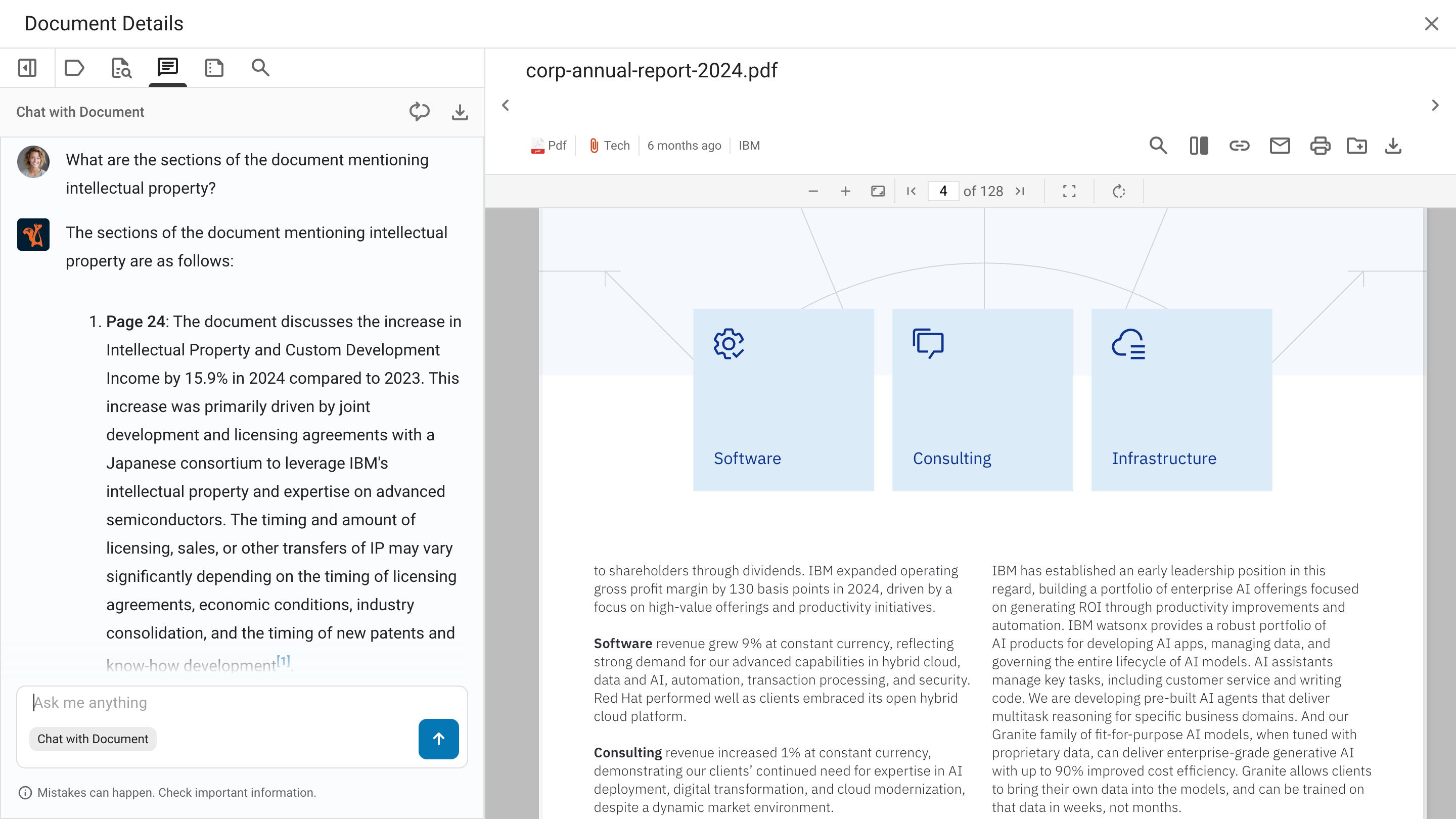
The Chat with Document feature is an assistant that users access by clicking the Chat icon while viewing a document. It delivers answers based exclusively on the content of the document. That feature is driven by an agent that activates contextually when a document opens. Administrators configure it through the Chat with Document agent, which comes with pre-defined settings and parameters designed to suit most scenarios. However, certain use cases or document types may require some value adjustments for the best possible performance.
Overview#
When a user opens a document in the Squirro interface and clicks the Chat icon:
The chat panel opens
A chat panel appears alongside the document viewer.
Automatic activation
The document viewer automatically activates the Chat with Document agent.
Strict Grounding
All responses are based solely on the document content.
Conversation History
The system stores conversations started in the document viewer in the conversation history. The users can continue these interactions later using the standard chat interface.
That feature is specifically designed for scenarios where users need to deeply understand, analyze, or extract information from a single document they are currently viewing, rather than searching across multiple sources.
Agent Configuration#
The agent configuration in the agent management interface determines the chat experience within the document viewer. Modifying settings such as tools, persona, and instructions influences how the chat feature behaves during interactions with the user.
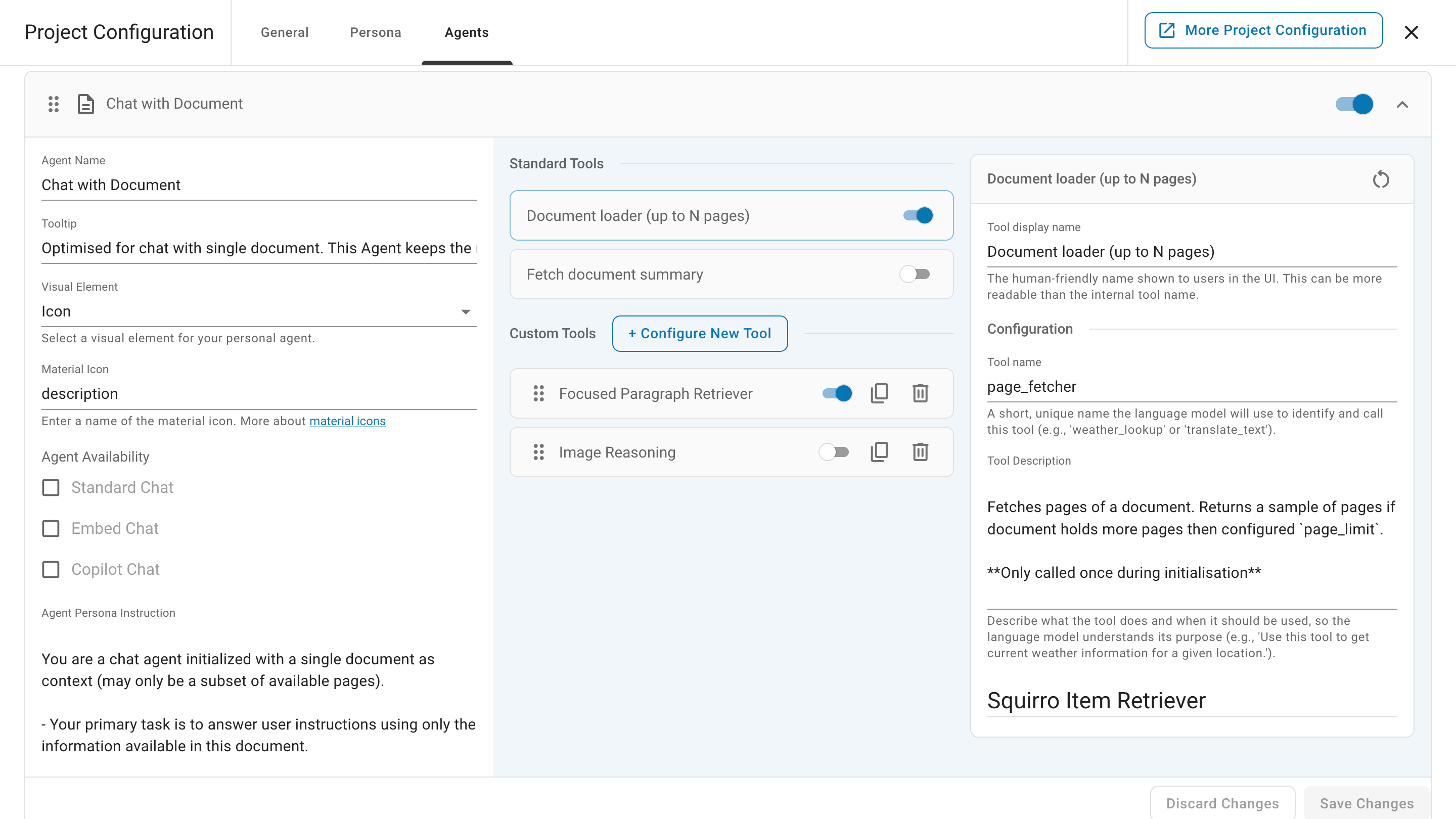
The Chat with Document agent is a system agent with pre-populated settings. While all settings are editable, it is recommended to keep the default name and tooltip or choose values that clearly identify the system agent as the one managing the chat experience within the document viewer.
As with other agents, you can decide whether to display an icon or an image alongside the agent name or opt for no visual element. If you select one, you can specify which Material icon the system should use.
Since it is a system agent dedicated to the document viewer, adjusting the availability options has no impact. It may appear in the agent list of the standard, embedded, or copilot chat if an option is checked, but the system never uses it outside the document viewer context.
Agent Persona Instruction#
The agent operates with a specialized default persona that administrators can customize.
You are a chat agent initialized with a single document as context (may only be a subset of available pages).
Your primary task is to answer user instructions using only the information available in this document.
If the initialized context does not provide enough information to confidently answer, you must call the paragraph_fetcher tool at least twice to retrieve additional context. Retrieval must be done iteratively, with the subsequent call being informed by the previous results (fill in gaps, research relevant areas).
All responses must be strictly grounded in the available or retrieved context.
Do not introduce information that is not explicitly present in the context.
Administrators can adjust the persona through the agent management interface to tailor the agent behavior for specific use cases, such as legal document review, technical documentation analysis, or research paper exploration.
Standard Tools#
The Chat with Document agent comes with two standard tools that are automatically configured with pre-defined settings.
When the chat opens, both standard tools run automatically and their output is injected into the system prompt as seed context. That document context persists for the entire conversation. From the start, the agent has access to a representative sample of the document pages and a document summary.
For shorter documents, that seed context is often sufficient to answer follow-up questions without any further tool calls. For longer documents, the agent calls on-demand retrieval tools throughout the conversation to locate specific information not covered by the initial context.
Document Loader#
The Document Loader (page_fetcher) is an instance of the Squirro Item Retriever tool optimized for accuracy and complete document access. It retrieves and processes individual documents from the Squirro content repository, activating once during agent initialization to load the document context.
For detailed information about the available configuration settings, see the Squirro Item Retriever Tool page.
Fetch Document Summary#
The Fetch Document Summary (summary_fetcher) is an instance of the Squirro Item Retriever tool optimized for performance and overview generation. It generates comprehensive summaries of documents through LLM analysis and automatically saves them for future reuse. That tool activates once during agent initialization to provide compressed document understanding.
For detailed information about the available configuration settings, see the Squirro Item Retriever Tool page.
Custom Tools#
Administrators have the ability to add extra tools to expand the capabilities of the Chat with Document agent. The agent includes two pre-loaded custom tools by default, both powered by the Squirro Retriever Tool.
Focused Paragraph Retriever#
The Focused Paragraph Retriever (paragraph_fetcher) is an instance of the Squirro Retriever tool configured for iterative, on-demand retrieval throughout conversations. It performs targeted search at the paragraph level to locate specific information within documents, making it particularly effective for answering specific questions and filling knowledge gaps during document analysis.
For detailed information about the available configuration settings, see the Squirro Retriever Tool page.
Image Reasoning#
Image Reasoning (image_reasoning_on_best_pages) is an instance of the Squirro Retriever tool configured specifically for analyzing visual content. That tool should only be called as a last step, after the agent has retrieved textual context that explicitly references visual elements such as tables, charts, or figures.
Requirements:
Multimodal LLM that supports image input.
Documents with embedded images, charts, or tables.
Sufficient token budget for image processing.
The tool performs best when the agent has already identified specific pages or sections containing relevant visual content through text-based search. Using that tool without textual guidance may result in slower performance and higher costs without corresponding accuracy improvements.
For detailed information about the available configuration settings, see the Squirro Retriever Tool page.
Adding Additional Tools#
In addition to the standard and pre-loaded custom tools, administrators can add additional tools to the Chat with Document agent through the agent configuration interface. The system integrates them alongside the standard tools, making them available to the agent. It selects the appropriate tool based on the user prompt.