
User Guide#
This guide covers Squirro Neo from an end user perspective. It describes how to hold a conversation with an agent and how to find documents in your project.
This guide does not cover setting up Neo or configuring what the agents can do. For those topics, see the Administrator Guide page.
Opening Neo#
Neo is available at the address of your Squirro instance with /neo/ added to the end. If you reach Squirro at https://your-instance.example.com, then Neo is at https://your-instance.example.com/neo/.
If that address does not load, Neo is not available on your instance. On Squirro Cloud, Neo is automatically available starting with Squirro 3.15.5. Other deployment types require a package deployment first, so ask your administrator whether you can use it.
Sign in with the same credentials you use for the rest of the Squirro platform. Neo then opens the Chat dashboard for the project you used most recently.
Neo draws on the same projects and content as the rest of the Squirro platform, and you see only the projects you have access to. Use the project selector in the navigation bar to switch between them. Conversations and saved searches belong to the project that was active when you created them.
Navigating Neo#
Neo has a single navigation bar, the narrow strip on the far left that stays in place whichever dashboard you are on. Individual dashboards can bring controls of their own, as the Chat dashboard does with the conversation panel described on the Chat page.
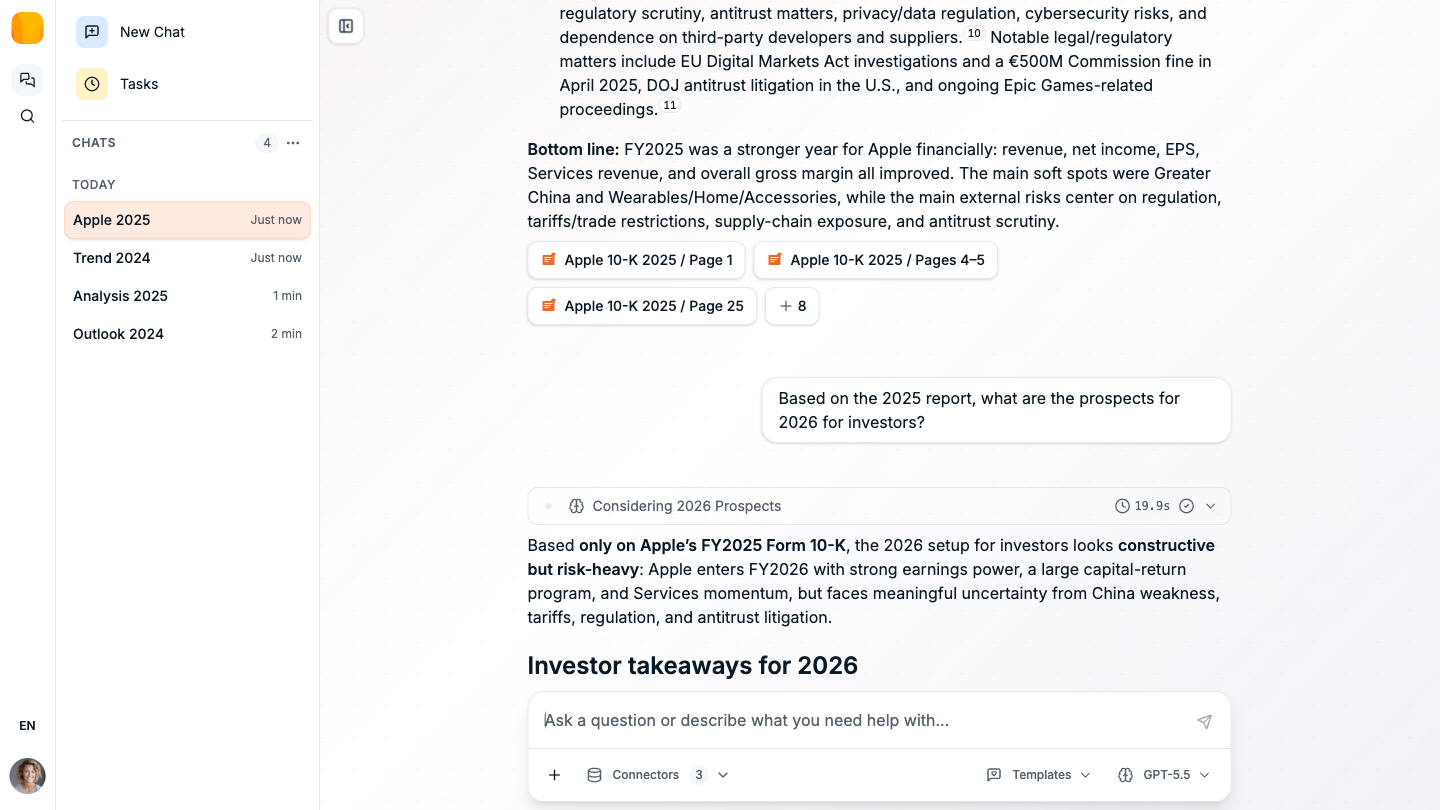
The bar shows icons rather than words. Hold the pointer over an icon to see its name.
From top to bottom, the bar contains the following:
The project selector
Appears as the image set for the project you are working in, or the Squirro logo when that project has no image. Hold the pointer over it to see the project name, and select it to switch to another project you have access to.
The dashboards
Chat and Search are available by default. Your project administrator team can add further dashboards, and those appear in the bar alongside the two standard ones. Which of the added dashboards you see can depend on the access groups you belong to, so your navigation bar does not necessarily match what a colleague sees.
The language selector
Sets the language of the interface itself, meaning its menus, buttons, and labels. It does not change the language of your documents, and it does not change the language an agent answers in. Neo is available in English, German, French, and Italian.
Your profile picture
Opens a menu holding Settings, More apps, and Logout. Settings gives you Memory, where you review and remove what an agent has remembered about how you work in this project, and About, which reports the build you are running. More apps links to the other Squirro applications, and which of them it lists depends on your role and on how your instance is set up, so you may see fewer entries than a colleague with broader permissions.
Chat#
Ask questions in plain language and read the answer as the agent writes it. Answers cite the documents they draw on, and you can open any cited document without leaving the conversation.
The composer, the area where you type your question, also controls how the answer is produced. Choose an assistant, pick a model, attach your own files, and reuse prompts you have saved as templates.
Search#
Search the documents in your project and open the ones you want to read. Enter keywords or describe what you are looking for, narrow the results with filters, and save the searches you run often.