
Managing User Groups#
A user group is a named set of users that can be given a role in a project in a single step, instead of adding each user individually. Groups are also the unit that several other features work with, including dashboard restrictions and Squirro Neo dashboard visibility.
Groups are created and maintained by administrators outside of any single project, then shared with the projects that need them.
Groups versus Project Roles#
Groups and project roles answer two different questions, and they are not interchangeable.
Group
A named list of people, maintained once in the Server space and reused across projects. A group determines who has access.
Project role
The level of access held inside a single project, chosen from Administrator, Member, and Reader. A role determines what that access allows.
A group carries no permissions of its own. It only has an effect once it is given a role in a project, and the same group can hold a different role in each project it is shared with.
This distinction matters wherever a group is referenced by name. A project role such as Administrator is not a group name, so using it where a group is expected matches nothing.
Groups and Workspaces#
Where a group lives depends on whether the Workspaces feature is turned on.
Without Workspaces
Groups are defined once for the whole Squirro instance. Any project on the instance can be given access to any group.
With Workspaces
Each workspace holds its own separate set of groups, and a group can only be shared with projects inside its own workspace. The Server space is renamed to Workspaces, and you manage groups per workspace.
Two workspaces can each contain a group with the same name. They remain two distinct groups with no relationship to each other, so a user added to one is not a member of the other.
When Workspaces is turned on, a user is only ever given groups that belong to the workspace being worked in. A group from another workspace is ignored rather than applied. A workspace also cannot be deleted while it still contains groups, so delete its groups first.
Note
The steps on this page describe the Server space. With Workspaces turned on, group management moves to the Workspaces space and uses a different screen layout, so the button and menu names differ from those below. The concepts, and everything on this page outside the step lists, apply to both.
Who Can Manage Groups#
Creating, renaming, and deleting groups, and changing who belongs to them, requires the server-level Administrator role. With Workspaces turned on, that means the Workspace Admin role for the workspace holding the group. Cluster Admins are Workspace Admins in every workspace, so they can manage groups anywhere.
Project Administrators and project Owners can see the list of group names, so that they can add a group to their own project. They cannot see who belongs to a group, and they cannot create, rename, or delete one.
For more information about these roles, see the Squirro Roles & Permissions page.
Creating a Group#
Groups are listed under Groups in the Server space.
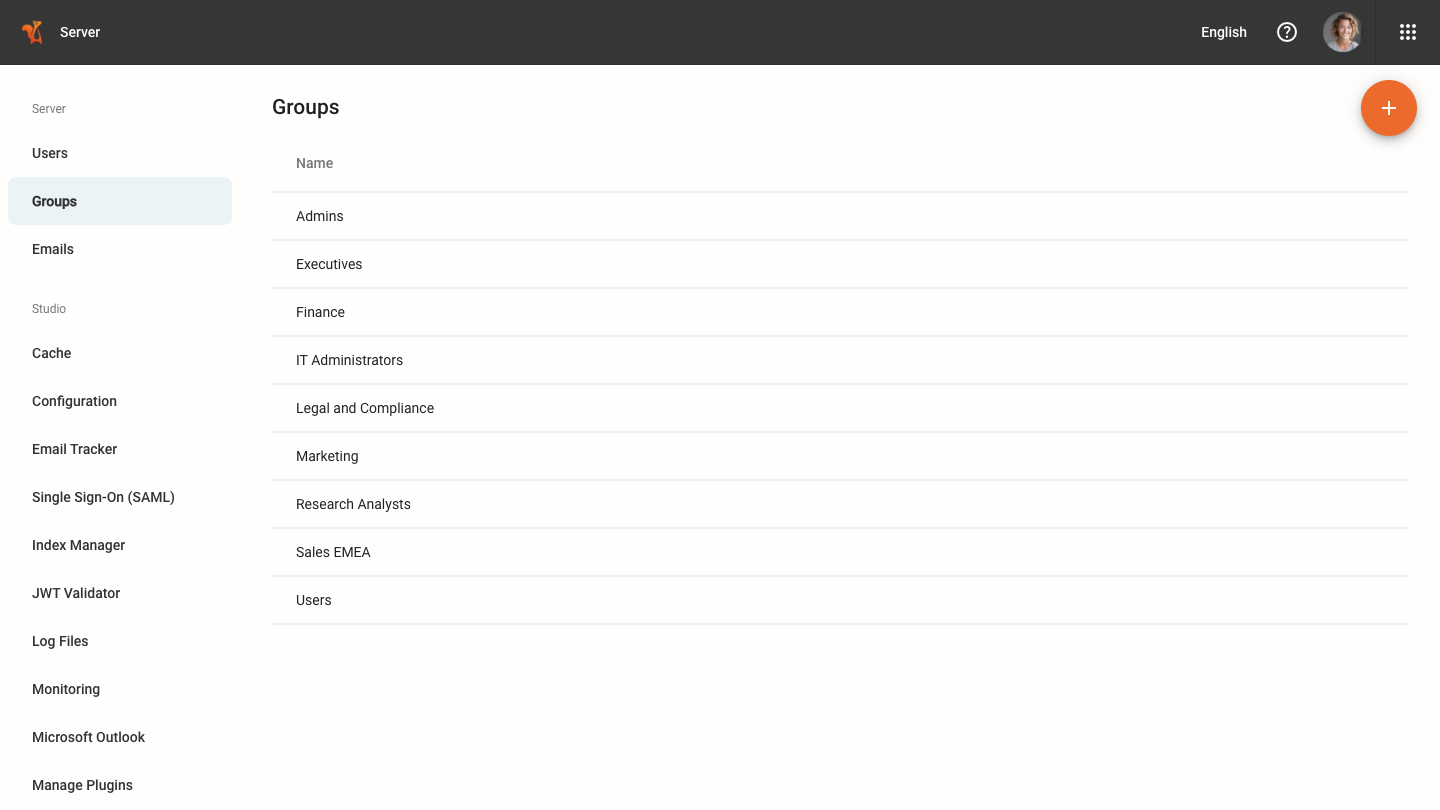
Follow the steps below to create a group:
Log in as a server-level Administrator.
Navigate to the Server space.
Click Groups in the left menu.
Click the plus icon.
Enter a name in the Group Name field. Choose a name that is recognizable to project administrators, because they select the group by name when adding it to a project.
Click Save.
Group names must be unique within the Squirro instance, or within the workspace when Workspaces is turned on. Saving a duplicate name is rejected.
Managing a Group#
Open a group from the Groups list to work on it. The group page shows the group name and lists each member by Name and Email.
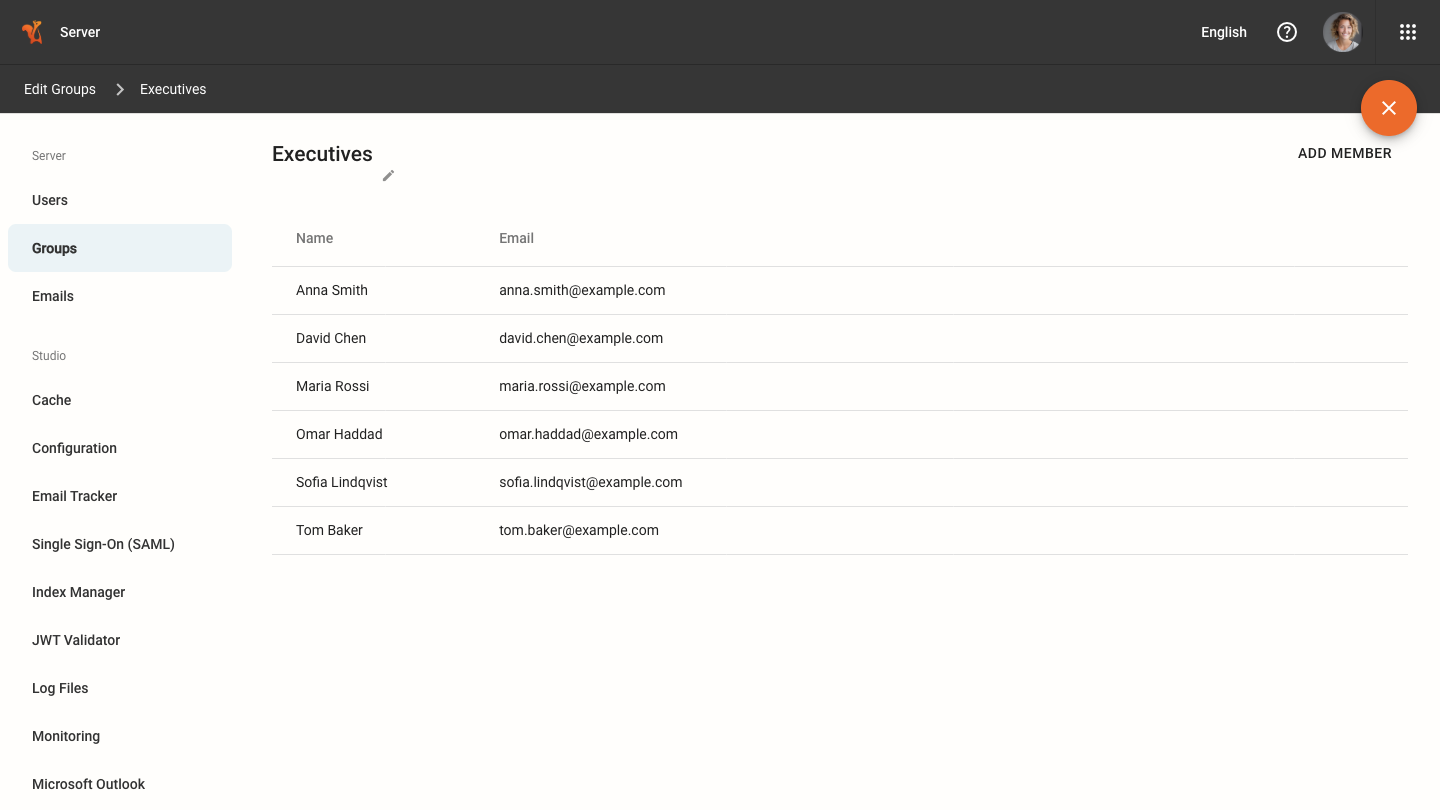
Adding Members#
Click Add member.
Start typing a name, select the users to add, then save.
Only users who already exist on the server can be added. For how users are created, see the Squirro Roles & Permissions page.
Removing Members#
Hover over the member row, then click Delete.
A user removed from a group immediately loses any project access that came from that group. Access granted to them directly, or through another group, is unaffected.
Renaming a Group#
Hover over the group name to reveal the pencil icon, click it, enter the new name, then save. The icon is hidden until you hover, so it is not visible on the page at rest. Renaming keeps all members and all project access intact.
Warning
If group membership is populated from an identity provider, renaming a group breaks the match with the group name sent by that provider. See Populating Membership from an Identity Provider below.
Giving a Group Access to a Project#
Giving a group a role in a project grants that role to every member of the group. The Project Members list of a project shows groups and individual users together, each with the role it holds. Groups are marked with a group icon.
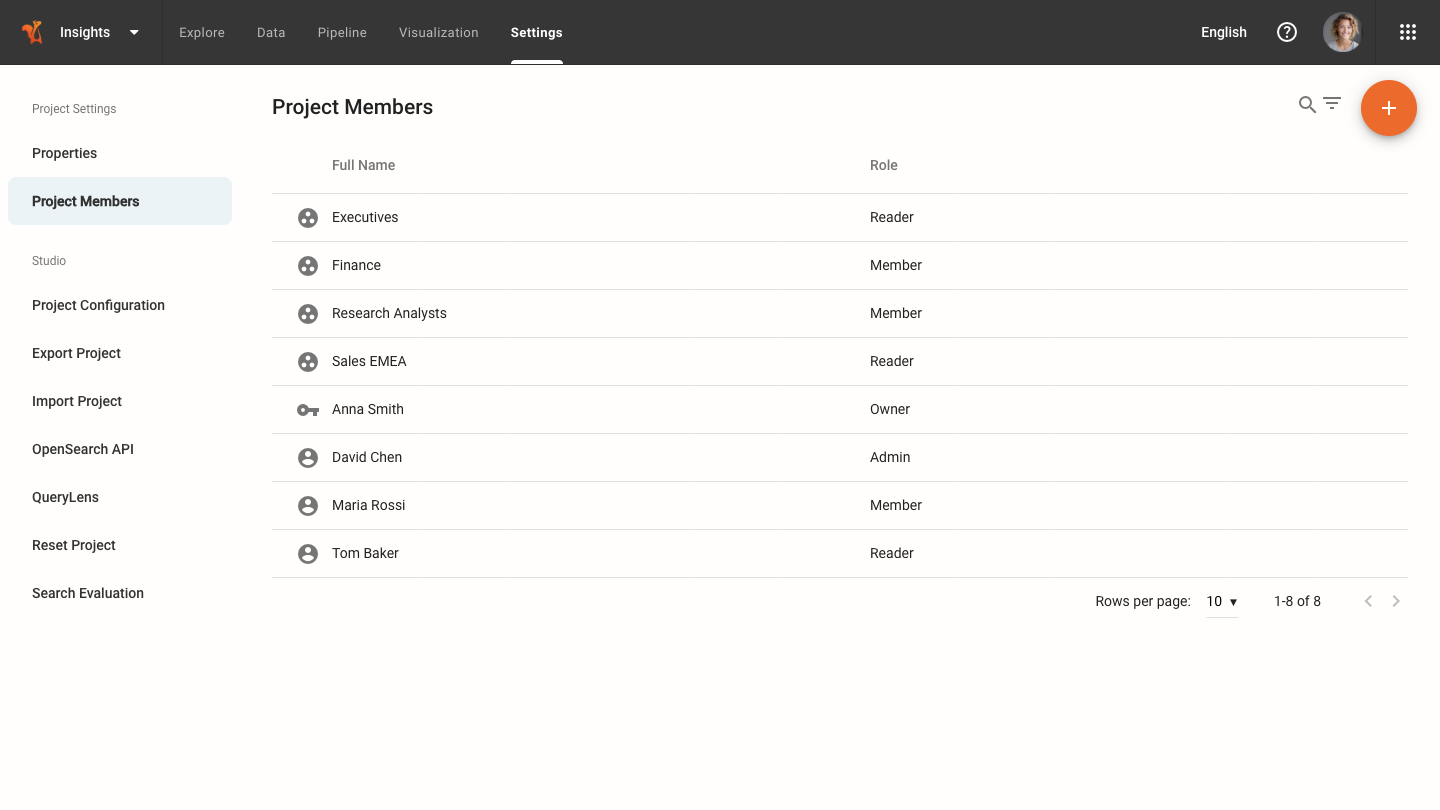
Add the group from within the project that needs it. The Groups page in the Server space has no option for this. Follow the steps below:
Navigate to the Setup space of the project.
Click the Settings tab.
Click Project Members in the left menu.
Click the plus icon.
Select the group, assign a project role, then click Add.
Repeat this for every project the group needs. To revoke access, remove the group from the same Project Members list. Every member who reached the project only through that group loses access, and adding the group back restores it.
Deleting a Group#
In the Groups list, hover over the group row, click Delete, then confirm. To remove a single user instead, use Delete on the member row of the group page.
Deleting a group is permanent and has effects beyond the group itself:
Every member loses any project access that came only from that group.
The group is removed from the permissions of every restricted dashboard it was granted.
Email alerts that members received through the projects reached by that group are removed.
Members themselves are not deleted, and access they hold directly or through another group is unaffected.
Populating Membership from an Identity Provider#
Where single sign-on is used, group membership can be driven by the identity provider instead of being maintained by hand. The behavior differs between SAML and JWT authentication.
SAML Single Sign-On#
The group names an identity provider sends are read from the field named in Group names field (provided by SAML provider), and they feed two independent mechanisms:
Server role assignment
Mapping of groups to Squirro roles maps identity provider group names to Squirro server roles. That mapping is configuration text, so it works without any matching group existing in Squirro.
Squirro group membership
An assertion name grants membership only where a Squirro group of the same name already exists.
Only the second mechanism needs groups mirrored in Squirro, and only for those actually used to grant project access or referenced by name elsewhere. There is no need to recreate the whole directory. To place every user authenticated through the configuration into one group regardless of the names sent, use User group (set for all users) instead, which selects an existing group rather than matching on name.
Where names are matched, matching is case-insensitive, so a Squirro group named Finance matches an assertion sending finance. Three further points determine the result:
The group must already exist
A name in the assertion that matches no existing group is ignored, and no group is created for it. Create the group first, with a name matching the one the identity provider sends.
Membership is reset at every login
Each login sets the user memberships to exactly the groups named in the assertion. A group assigned by hand is therefore removed the next time that user logs in, unless the identity provider also sends it.
Only the current workspace is affected
With Workspaces turned on, logging in to one workspace leaves the user memberships in other workspaces untouched.
Because membership is reset at every login, treat the identity provider as the source of truth for membership on a SAML instance, and avoid mixing it with manual assignment for the same users.
For more information, see the Squirro Roles & Permissions and SAML SSO for Squirro pages.
JWT Authentication#
With JWT authentication, groups found in the token claims are used for role mapping only and never grant group membership. Membership comes from the Default group setting, which is added alongside any group the user already holds rather than replacing it.
For more information, see the JWT Authentication page.
Where Group Membership Is Used#
Beyond project access, group membership is read by the following features:
Dashboard permissions
A restricted dashboard can be opened up to a group rather than to individual users. For more information, see the Dashboard Permissions page.
Squirro Neo dashboards
The
allowedGroupsfield of a bundle manifest limits a dashboard to the listed groups, matched by group name or group ID. For more information, see the The Bundle Manifest page.Squirro Monitoring
Usage figures are broken down by the group each user belongs to. For more information, see the Squirro Monitoring page.
Managing Groups with the API#
Groups can also be created and maintained programmatically with the Python Squirro client, which is useful for provisioning many groups or for keeping them in step with an external system.
The client provides methods to list, create, read, update, and delete groups, and to add and remove individual members.
For more information, see the User Management page.