
Search Evaluation#
The Search Evaluation plugin is a comprehensive tool for evaluating and comparing different search strategies within the Squirro platform. It provides capabilities for creating evaluation datasets, running controlled search experiments, and analyzing search quality using standard information retrieval (IR) metrics.
Components Overview#
The search evaluation feature is organized into three main tabs:
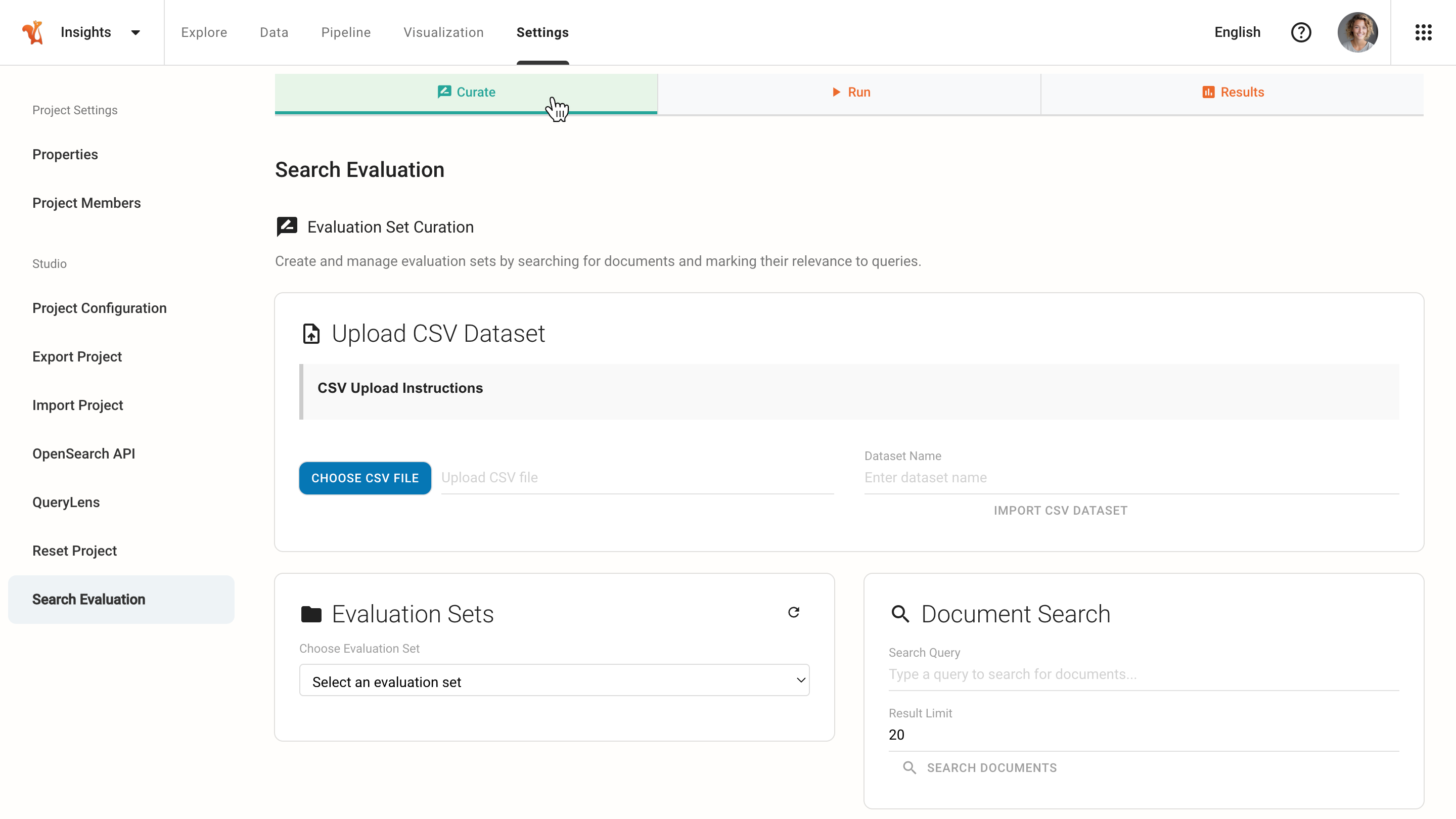
Curate Tab
Create and manage evaluation datasets.
Run Tab
Configure and execute search experiments.

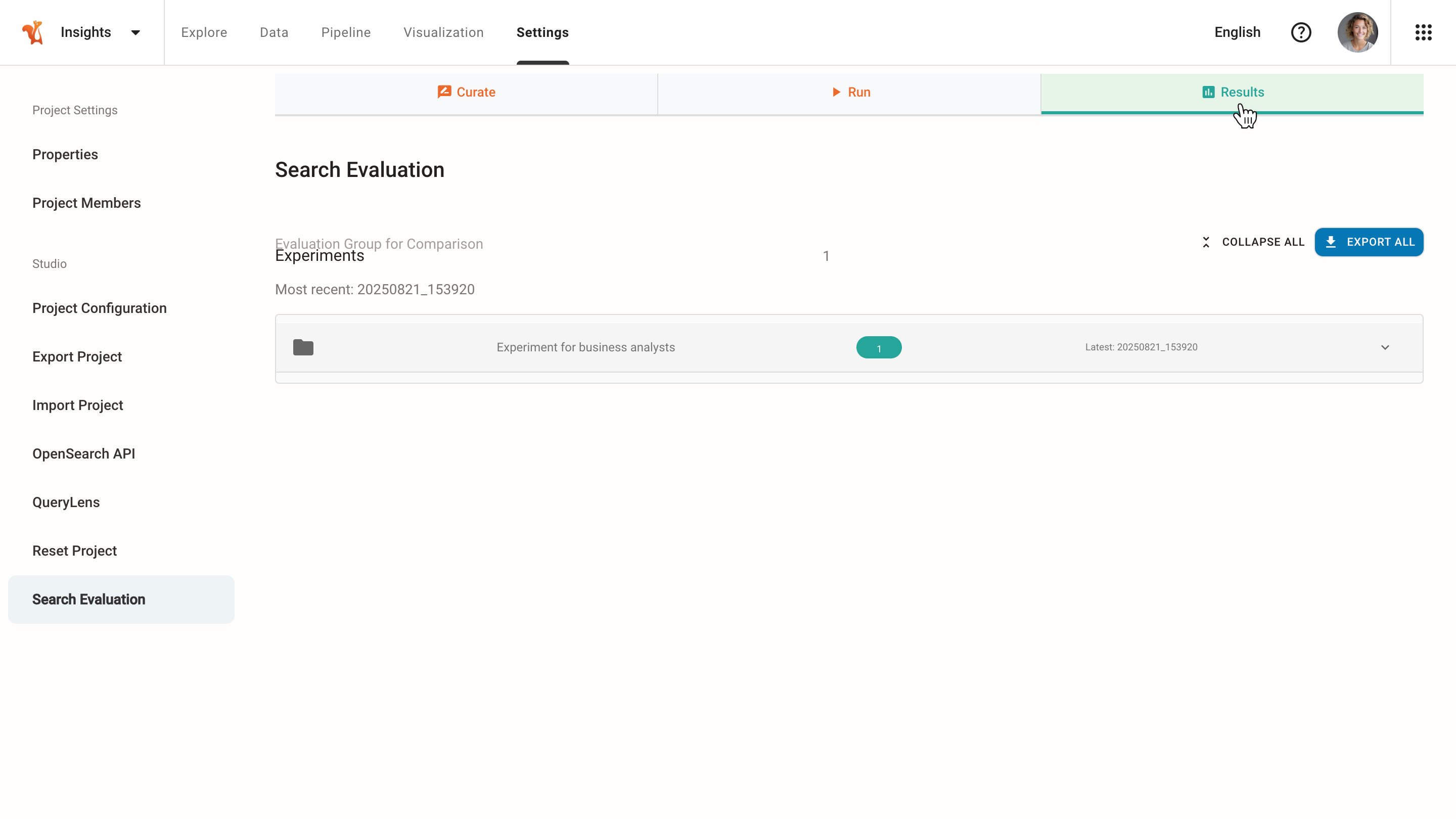
Results Tab
Analyze performance metrics and visualizations.
Curate Tab - Evaluation Set Curation#
Use the Curate tab to create and manage evaluation sets by searching for documents and marking their relevance to specific queries.
Importing an Evaluation Set from CSV#
Use the Upload CSV Dataset panel to import an evaluation set from a CSV file containing ground truth relevance data.
Click CHOOSE CSV FILE.
Select a CSV file with the following format:
Column
Description
Format
queryThe search query.
Quote the query if it contains commas.
relevant_item_idsIDs or titles of highly relevant documents.
Separate multiple values with
;.secondary_item_idsIDs or titles of partially relevant documents.
Separate multiple values with
;.bad_item_idsIDs or titles of irrelevant documents.
Separate multiple values with
;.Tip
Squirro recommends using item titles instead of IDs, as they are portable across projects.
Example rows:
queryrelevant_item_idssecondary_item_idsbad_item_idsWhat is Squirro?
eZN-ATUqz0dauNJrQMMkxQ;cg25zv9N43nS975RPICY4Q
oVwnrn000PXv9tHrdqGn5g
oXUBe1x7k6E_JC-t4RSHuw;zXVZWpho0dXsvd-wieNvXw
household debt crisis
Are Australian households on the edge of a debt crisis?;Government threatens tax increase to pay for ‘unfunded’ NDIS
Grant Hackett released from custody after Gold Coast incident
Kim Jong-un’s airport hit by a strike
JavaScript security exploit
New ASLR-busting JavaScript is about to make drive-by exploits much nastier
NullPointerException in XSSFImportFromXML does not support optional elements;Extending RollingFileAppender is awkward
Enter a Dataset Name for the evaluation set.
Click IMPORT CSV DATASET.
The system creates a new evaluation set from the imported CSV data. The evaluation set can then be used to run experiments.
Document Search and Tagging#
Use the Document Search panel to find and tag documents for the evaluation set.
Select or Create an Evaluation Set
Use the Evaluation Sets dropdown to select an existing set or create a new one.
Click + Create New Evaluation Set to start fresh.
Add Queries
In the evaluation set, add one or more search queries to evaluate.
These represent searches users typically perform.
Search for Documents
Select a query from the list to automatically populate the search query field.
In the Document Search panel:
The Search Query field auto-populates with the selected evaluation query.
Optionally modify the search query to find additional candidate documents using alternative search terms.
Adjust the Result Limit if needed.
Click SEARCH DOCUMENTS.
Tag Document Relevance
Tag each document with its relevance level for the selected evaluation query:
Relevant (score: 2)
Highly relevant documents that fully answer the query.
Somewhat (score: 1)
Partially relevant documents with some useful information.
Bad (score: 0)
Not relevant or irrelevant documents.
Build the Ground Truth Dataset
Repeat this process for each query in the evaluation set.
Tag enough documents per query to create a comprehensive ground truth dataset.
Typically, 10-20 tagged documents per query provides good evaluation coverage.
Notes
The more queries and tagged documents included, the more reliable the evaluation results will be.
The search query is a tool to find documents to tag. The evaluation query (from the set) remains unchanged. Using different search terms helps discover a broader range of documents that may be relevant or irrelevant to the evaluation query. For example, search for “AI models” and “neural networks” to find documents for the evaluation query “machine learning”.
The document search in the Curate tab uses keyword lookup and ngram matching on document titles only. It does not use semantic search. As a result, semantically related but lexically different terms will not surface automatically. For example, to find documents relevant to the evaluation query “machine learning”, you may need to explicitly search for “AI models”, “neural networks”, or other related terms.
Relevance tagging in the Curate tab assigns evaluation labels (Relevant, Somewhat, or Bad) to documents for building the ground truth dataset. Those labels are distinct from platform document tags, which are metadata labels applied to documents in a project. Platform document tags are indexed by the search engine and can influence evaluation results, because experiments run actual searches against the project. To ensure evaluation accurately reflects production search quality, use the same document tags in the evaluation corpus as in production documents.
Managing Evaluation Sets#
The Evaluation Sets panel provides the following actions:
Select
Select an existing evaluation set to view or edit.
Create
Create a new evaluation set.
Refresh
Click the refresh icon button to reload the list of evaluation sets and see recently created or modified sets.
Save Changes
Save modifications to the current evaluation set, including added queries, removed queries, and relevance tags for documents. Changes are persisted to the evaluation set file.
Export CSV
Export the current evaluation set to CSV format in TREC style.
Delete
Permanently delete the current evaluation set from the system.
Note
Two SAVE CHANGES buttons appear when an evaluation set is loaded. One in the Evaluation Sets panel and one next to the evaluation set display. Both buttons perform the same action for convenience.
Exporting Evaluation Sets#
Export evaluation sets to share them or use them in other environments.
Select an evaluation set from the Evaluation Sets dropdown.
Click the export button.
The exported CSV file contains query-document relevance pairs in TREC format.
Run Tab - Running Experiments#
Use the Run tab to configure search strategies and execute experiments against evaluation sets.

Experiment Configuration#
Experiment Name (Optional)
Provide a descriptive name for the experiment.
If left blank, the system uses the evaluation set name.
Comment (Optional)
Add notes or context about this experiment.
Useful for documenting what is being tested.
Select Evaluation Set
Choose which evaluation set to run experiments against.
The dropdown shows all available evaluation sets from the Curate tab.
Configure Search Strategies
In the Experiment Configuration editor, define the search strategies to test. Each strategy is configured in JSON format.
Example:
{
  "semantic": {
    "plugins": "profile:{semantic perform_only_knn:true}",
    "description": "Pure semantic search using embeddings"
  },
  "keyword": {
    "plugins": "",
    "description": "Keyword-only search (BM25/TF-IDF)"
  },
  "hybrid-linear": {
    "plugins": "profile:{semantic knn_boost:100}",
    "description": "Hybrid search combining keyword and semantic"
  },
  "rrf-semantic-keyword": {
    "plugins": "profile:{semantic knn_boost:100 perform_only_knn:true}",
    "hybrid_rrf": true,
    "search_paragraphs": true,
    "description": "RRF combination of semantic and keyword results"
  }
}
Each strategy requires:
Strategy name
Unique identifier (for example, “semantic” or “keyword”).
plugins
Squirro search profile configuration.
description
Human-readable explanation of the strategy.
Optional parameters
Additional parameters such as
hybrid_rrfandsearch_paragraphs.
Note
It is also possible to evaluate an agent end-to-end by specifying an agent_id in the strategy configuration.
Example:
{
  "default-agent-all-data": {
    "agent_id": "fzY62UQRTzqS17tl--yvWw",
    "description": "Default agent used to chat with all available data"
  }
}
Running Experiments#
After configuring the strategies, click the RUN EXPERIMENTS button.
The system executes all configured strategies against the evaluation set:
Each query in the evaluation set is tested with each strategy.
Documents are retrieved and ranked according to each strategy.
Results are compared against the ground truth relevance judgments.
Real-time Progress Tracking
Monitor experiment execution with live updates.
Results Tab - Analyzing Results#
The Results tab displays completed experiments with their performance metrics and provides detailed analysis capabilities.
Viewing Experiments#
The Results tab shows:
List of experiments
All completed experiment runs with timestamps.
Experiment name
The provided name or auto-generated name.
Latest timestamp
When the experiment was most recently run.
Detailed Results
Click the expand arrow to view detailed results and side-by-side comparisons of different search strategies.
Analyzing Experiment Results#
Choose an experiment and use the expand arrows to view the summary of metrics.
Click the DETAILS button to access analysis insights:
Configuration
View the complete configuration parameters used for the search experiment.
Query-Level Breakdown
View individual metrics for each query in the evaluation set.
Document-Level Analysis
For each query, examine the retrieved documents, their rank positions, relevance scores from the ground truth dataset, and compare the actual ranking with the ideal ranking.
Exporting Results#
Export experiment results for further analysis, reporting, or archival.
Click the EXPORT ALL button to export all experiments. The system automatically downloads a JSON file containing:
All evaluation metrics.
Query-level details.
Document rankings.
Configuration parameters.
Timing statistics.
Per-query metrics for all strategies.
Aggregate statistics.
Complete document rankings.
Experiment metadata and configuration.
Understanding Information Retrieval Metrics#
The Search Evaluation plugin calculates several standard IR metrics to assess search quality.
Normalized Discounted Cumulative Gain (NDCG)#
A measure of ranking quality that considers both the relevance of documents and their positions in the ranking.
How it works:
Assigns higher scores to more relevant documents found at higher ranks.
Applies a logarithmic discount to lower positions, giving full weight to the top position and progressively less to subsequent ones.
Normalizes the score by the ideal possible score (IDCG) to facilitate comparison across different queries.
Common Number of Items
NDCG@k refers to the NDCG score calculated only up to the first k items in the ranked list.
NDCG@5Focus on top 5 results.
NDCG@10Top 10 results.
NDCG@20Top 20 results.
Interpretation
Interpret NDCG scores relative to your dataset and a baseline, not against fixed thresholds. Several factors limit the maximum achievable NDCG regardless of how good the ranking system is:
Incomplete judgment lists
If many relevant documents are not included in the evaluation set, they receive no credit when retrieved. The highest achievable NDCG on that dataset may be well below 1.0 (for example, 0.7).
Noisy or inconsistent labels
If annotators disagree or labels are imprecise, the ideal ranking itself is unstable, further capping the maximum achievable score.
Hard or ambiguous queries
Some queries have very few relevant documents or require subjective judgment, resulting in low NDCG even for near-perfect retrieval.
Tip
For reference, the highest NDCG achieved by state-of-the-art models on some well-known benchmarks is around 0.48. An absolute score of 0.5 would already be exceptional on such datasets.
What matters in practice is improvement over a strong baseline, not crossing an arbitrary score. Compare strategies against:
A simple BM25 keyword baseline.
The previous semantic model in production.
Search strategies with domain-specific signals (for example, boosting tagged documents or matching on named entities).
A consistent gain of 0.02–0.05 NDCG over a strong baseline is often more meaningful than an absolute value of 0.8 on a lenient evaluation set.
Mean Average Precision (MAP)#
A measure of precision across all relevant documents, with emphasis on retrieving relevant documents early in the ranking.
How it works:
Calculates the average precision (AP) for each query. The AP is the mean of precision values at positions where relevant documents are found.
The mean average precision (MAP) is the average of these AP scores across all queries.
Interpretation
Above 0.9
Excellent performance. The system is highly accurate, and almost all relevant items are ranked at the top.
0.7-0.9
Good performance. The system is effective, but there is room for improvement in ranking relevant items higher.
0.5-0.7
Moderate performance. The system retrieves some relevant items, but precision could be significantly improved.
Below 0.5
Poor performance. The system struggles to rank relevant items highly, and precision is low.
Precision@k#
Measures the fraction of retrieved documents that are relevant out of the total documents retrieved in the top k results.
Common Number of Items
Precision@5Quality of top 5 results.
Precision@10Quality of top 10 results.
Precision@20Quality of top 20 results.
Interpretation
Above 0.9
Excellent precision. Almost all top k results are relevant.
0.7–0.9
Good precision. Most of the top k results are relevant, but there’s room for improvement.
0.5–0.7
Moderate precision. About half of the top k results are relevant.
Below 0.5
Poor precision. Less than half of the top k results are relevant.
Recall@k#
Measures the fraction of relevant documents that are successfully retrieved out of all relevant documents available in the top k results.
Interpretation:
Above 0.8
Excellent recall. Almost all relevant items are captured in the top k results.
0.6–0.8
Good recall. A significant portion of relevant items is retrieved, but some are missing.
0.4–0.6
Moderate recall. Less than half of the relevant items are captured in the top k results.
Below 0.4
Poor recall. Very few relevant items are retrieved within the top k results.
Trade-off with Precision:
Higher k generally increases recall but may decrease precision.
Lower k focuses on precision but may miss relevant documents (lower recall).
Configuration Reference#
Search Strategy Parameters#
Search strategies in the Search Evaluation plugin use Squirro scoring profiles configured via the plugins parameter. The plugins parameter accepts scoring profile syntax to define search behavior. For more information, see the Scoring Profiles and Roles page.
Custom Configuration Examples#
Hybrid Search with Higher Boost#
{
  "hybrid-boosted": {
    "plugins": "profile:{semantic knn_boost:200}",
    "description": "Hybrid search with higher semantic weighting"
  }
}
Advanced Ranking Strategies#
The following examples show more sophisticated strategies that can be evaluated and compared using the Search Evaluation plugin.
{
  "hybrid-linear-reranker": {
    "plugins": "profile:{semantic} profile:{reranker reranker_score_weight:0.8 original_score_weight:0.2 worker:bge}",
    "description": "Hybrid search combining keyword and semantic search with a reranker model (BGE)"
  },
  "score-official-law-higher": {
    "plugins": "scale_by:{ tag:official_law }^10",
    "description": "Baseline keyword search that favours matching documents that also have a domain-specific tag"
  },
  "score-title-matching": {
    "plugins": "scale_by:{ profile:{fulltext_match fields:title query_type:phrase } }^10",
    "description": "Baseline keyword search that favours documents where the query matches as a phrase in the title"
  }
}
These strategies allow data-driven experimentation on a given evaluation set. Insights gained from this experimentation can then inform agentic search recipes. For example, experiments can reveal which search tools to give to an agent or how the agent should formulate queries.
For more information about the plugin syntax used above, see:
For profile and reranker configuration, see the Scoring Profiles and Roles page.
For field-level phrase matching, see the Advanced Usage: Relevance Ranking with Conditional Boosting page.
For boosting by optional ranking signals, see the Boosting Queries By Optional Ranking Signals page.