
Prompt Library#
The Prompt Library in Squirro Chat provides a centralized location for creating, managing, and sharing reusable prompt templates. This feature streamlines workflows by allowing users to save commonly used prompts, organize them by category, and share them across teams.
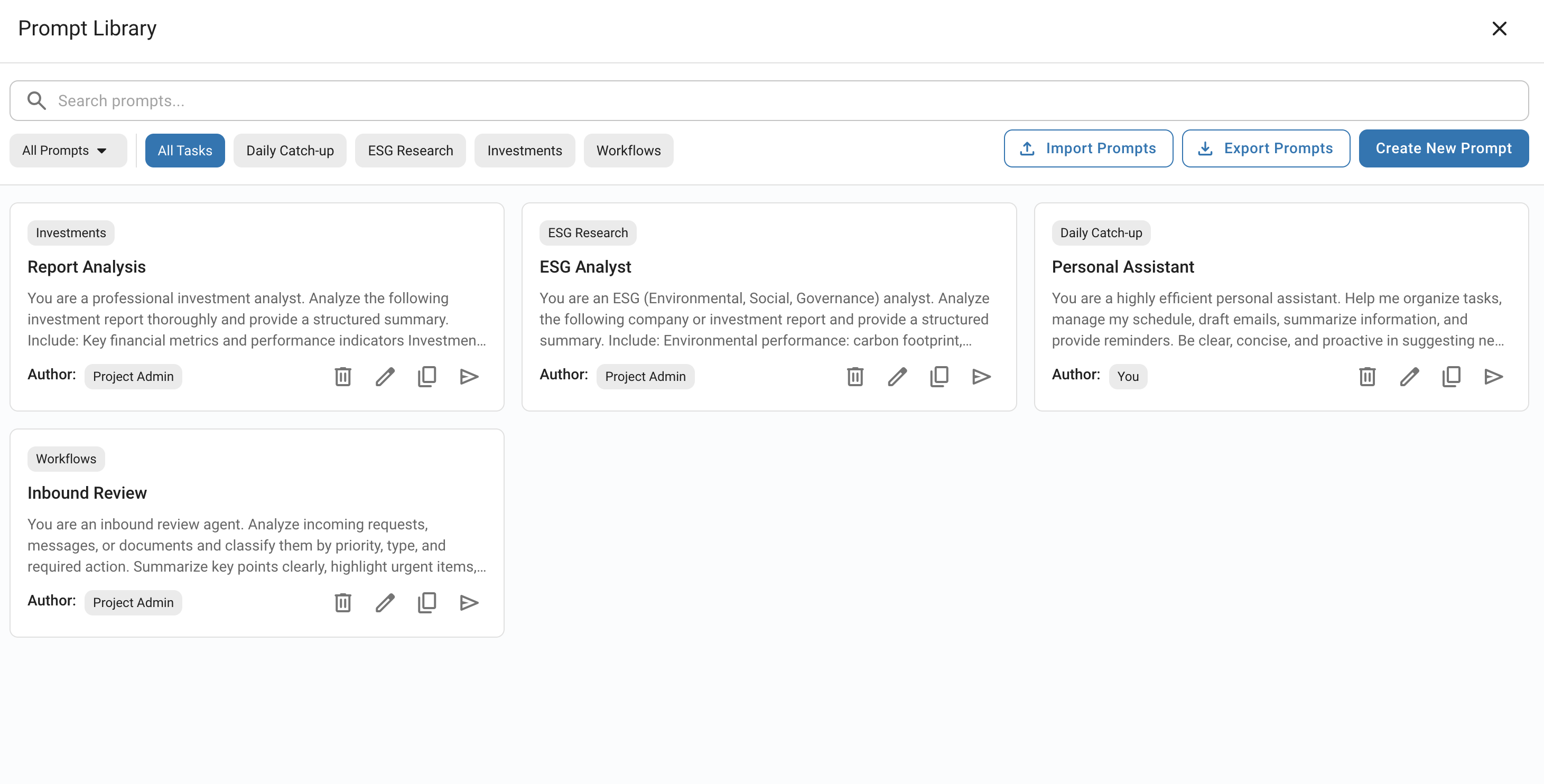
Overview#
The Prompt Library enables users to:
Create and save reusable prompt templates for common tasks.
Organize prompts using custom categories for easy discovery.
Share prompts at the project level with all team members.
Import and export prompt collections.
Search and filter prompts by name, content, or category.
Prompt Types#
The Prompt Library supports two types of prompts:
Personal Prompts
Private prompts created by individual users. These prompts are only visible to the user who created them and restricted to a specific project.
Project Prompts
Shared prompts created by project administrators. These prompts are visible to all users with access to the project, enabling teams to standardize common queries and workflows.
Accessing the Library#
To access the Prompt Library:
Open the Squirro Chat interface.
Click the View Prompt Library icon at the bottom of the chat input.
Creating Prompts#
Open the Prompt Library.
Click the Create New Prompt button.
Select the prompt type.
Fill in the prompt details:
Prompt Task Category
Assign one or more categories to organize your prompts, such as “Analysis,” “Summarization,” or “Research.”
Prompt Template Name
Provide a descriptive name to help you identify the prompt.
Prompt
Enter the prompt text or question you want the AI to address.
Click Save Prompt to finalize.
Limits#
Squirro does not cap the number of prompts you can save. Personal and project prompt collections both grow without a maximum number of entries.
Two limits apply to the content of a single prompt:
Prompt Template Name
Up to 100 characters.
Prompt
Up to 5,000 characters. The field shows the character count as you type.
The Prompt Task Category field is mandatory. If you leave it empty, the dialog reports that at least one category is required and keeps the prompt unsaved.
Using Prompts#
Open the Prompt Library.
Browse or search for the desired prompt.
Click on the prompt card.
The prompt text automatically appears in the chat input field.
Managing Prompts#
Each prompt card in the library includes actions for managing prompts.
Editing Prompts#
To edit a prompt:
Locate the prompt in the library.
Click the Edit Prompt icon.
Modify the prompt details in the edit dialog.
Click Save Prompt to apply your changes.
You can only edit your own personal prompts. Project administrators can edit any project-level prompt.
Deleting Prompts#
To delete a prompt:
Locate the prompt in the library.
Click the Delete Prompt icon.
Confirm the deletion in the confirmation dialog.
Deleting a prompt is permanent and cannot be undone.
Copying Prompts#
To copy a prompt’s text to your clipboard:
Locate the prompt in the library.
Click the Copy Prompt icon..
The prompt text is copied to your clipboard and ready to be pasted.
Organizing with Categories#
Categories help organize prompts by task type or use case. You can assign multiple categories to a single prompt.
Common Category Examples:
Analysis
Summarization
Research
Code
Learn
Data Extraction
Report Generation
The system creates categories dynamically when you create or edit a prompt:
In the Prompt Task Category field, start typing a category name.
Select an existing category from the dropdown, or press Enter to create a new one.
Add multiple categories by repeating the process.
Searching and Filtering#
Search Functionality#
The search bar at the top of the Prompt Library allows you to find prompts quickly:
Click in the search box.
Type your search term.
The library updates in real-time to show prompts matching your search.
The search function checks for matches in both prompt names and prompt text content.
Filtering by Type#
You can filter prompts by type:
All prompts
Shows both personal and project prompts.
Project Prompts
Shows only project-level prompts.
My Prompts
Shows only your personal prompts.
Filtering by Category#
To view the prompts in a specific category:
Open the Prompt Library.
Click on a category chip in the category filter bar at the top.
Only prompts in that category are displayed.
To view all prompts again, click All Tasks.
Import and Export#
The Prompt Library supports importing and exporting prompt collections, enabling you to:
Backup your prompts.
Share prompt collections with other users, projects, or organizations.
Migrate prompts between environments.
All users can both import and export prompts.
Exporting Prompts#
To export your prompts:
Open the Prompt Library.
Click the Export Prompts button.
A JSON file with your prompts downloads immediately.
Importing Prompts#
To import prompts from a JSON file:
Open the Prompt Library.
Click the Import Prompts button.
Load a JSON file containing prompts.
If you are not a project admin but wish to use exported project prompts, you can manually recreate them as personal prompts. To do this, open the JSON file, extract the necessary information (such as the prompt name, categories, and prompt text), and use the UI to create a personal prompt from it.
Permissions and Access Control#
The Prompt Library implements role-based access control.
All Users#
All users with access to a project can:
View and use project-level prompts.
Create, edit, and delete their own personal prompts.
Import and export prompts.
Search and filter the prompt library.
Project Administrators#
Project administrators have additional permissions:
Create project-level prompts shared with all team members.
Edit any project-level prompt.
Import and export project prompts.
Delete any project-level prompt.