
Getting Started with Squirro Neo#
Squirro Neo is the next generation of the Squirro user interface, designed for speed and extensibility. In Neo, you work with AI agents that answer questions from your content, and you search your documents in the same place.
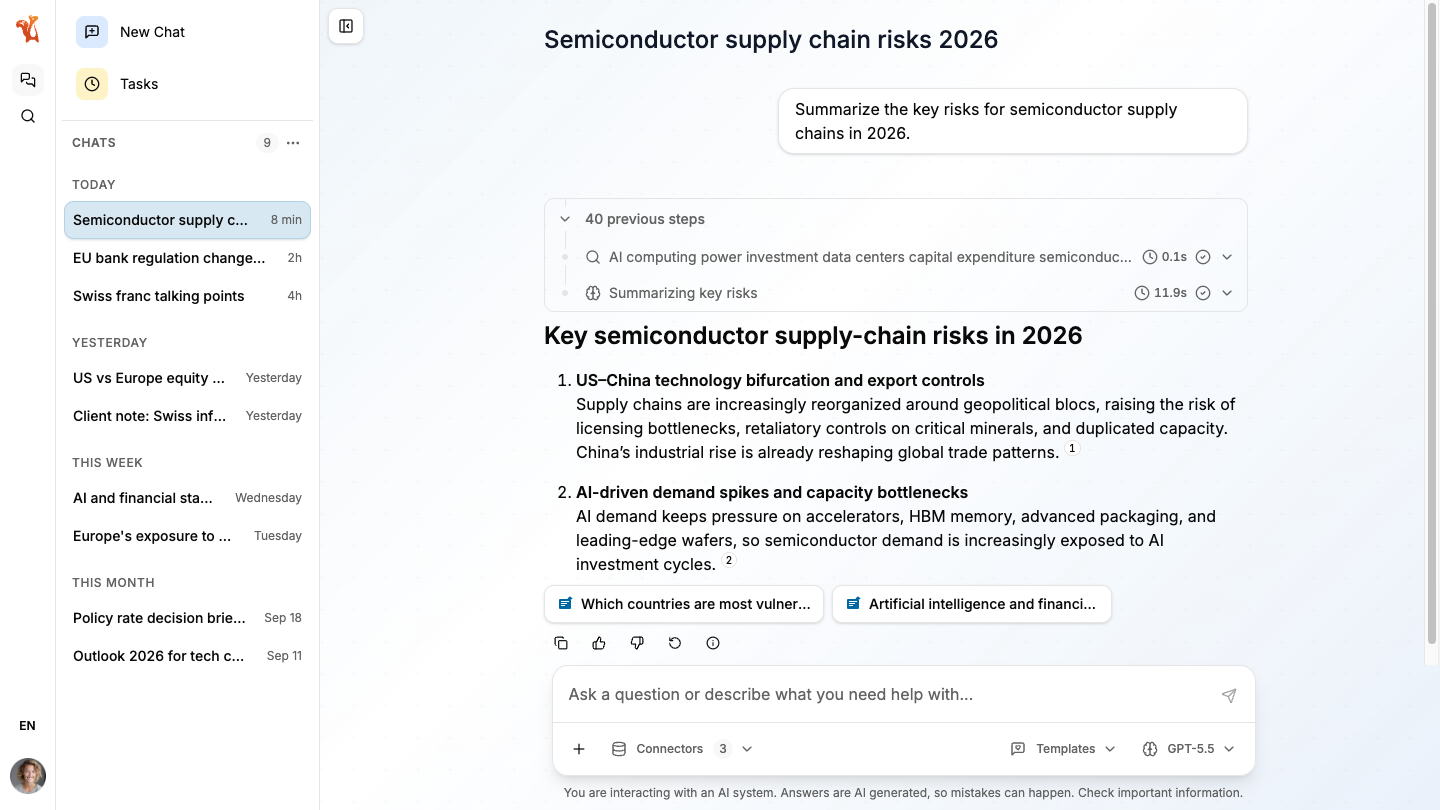
Using Neo#
Neo comes with two built-in dashboards, Chat and Search. In Chat, you ask questions and an agent answers from the content of your project, citing its sources. In Search, you find the documents in your project. Both use the same modern and intuitive interface.
With Tasks, you can also schedule an agent to run on its own, for example for a daily digest or a weekly report.
If you already use Squirro, Neo is easy to pick up, because it works with the same projects and content as the interface you know.
Because Neo is extensible, your administrators can add more dashboards built for your teams, as described in the Extending Neo section.
Neo is available at the address of your Squirro instance followed by /neo/, for example https://your-instance.example.com/neo/. The existing Squirro interface continues to run unchanged at https://your-instance.example.com/.
If that address does not open Neo, ask your administrator whether Neo is available on your instance.
For a walkthrough of Chat and Search, see the User Guide page.
Administering Neo#
On Squirro Cloud, Neo is automatically available starting with Squirro 3.15.5. Other deployment types require a package deployment before users can access Neo. For the deployment steps, including the single sign-on requirements, see the Setup page.
You can also invite your users to try Neo with an optional announcement card in Squirro Chat, in the existing interface, as described on the Setup page.
Neo runs on top of the Squirro platform, so what your projects already have in place carries over, including:
The data sources that load your content.
The pipelines that process your content, with every enrichment they apply, from known entity extraction and custom pipelets to the machine learning models you train in AI Studio.
The entities and labels that Squirro Classifier detects in your documents.
The taxonomies and knowledge graphs that you manage in Graphite.
The facets of your project, which Search uses as filters.
The projects, users, and access permissions of your Squirro instance.
On top of what carries over, Neo adds agent configuration, where you decide how its agents work. With it, you can:
Choose which models power the agents, from those set up with their credentials on your instance, and which agents your users can pick.
Write the instructions each agent follows, and lock the settings you do not want your users to change.
Connect the agents to your documents, your knowledge graphs, and external systems.
Decide which calls to the tools of your external systems an agent can make on its own, and which ones need a person to approve them first.
To monitor the AI features of Neo, use the same telemetry as for the rest of the platform. For more information, see the Observability page.
To start configuring:
Prerequisites lists what you need before you start.
Quick Start walks you through deploying your first agent configuration.
For the full reference, see the Administrator Guide page.
Extending Neo#
As a developer, you can build your own dashboards, and your administrators add them to the projects that need them. With a dashboard of your own, you can:
Show the content of your project in the layout your teams need, using the same cards, lists, and charts as Neo.
Embed a chat panel that works like the one in Neo, with answers that cite their sources.
Offer your dashboard in English, German, French, and Italian.
Because each dashboard can be shown only to the groups that need it, a legal team can work with a legislation dashboard while a research team uses an analytics dashboard, in the same project.
To see the building blocks available, browse the Neo component catalog website, where you can try every component in a live preview.
To start building:
Prerequisites lists what you need before you start.
Quick Start walks you through building your first dashboard.
For the full reference, see the Developer Guide page.